¶ ePlano 2.0 - New Features Summary
Version: 2.x.x
Target audience: Users migrating from version 1.2.x (legacy)
¶ Table of Contents
- Dark Theme
- ePlano Coop - Real-time Collaboration
- Outline Layer - New Highlight System
- Unified 2D View
- Drawing Tools
- Quality and Performance System
- Keyboard Navigation
- Camera and View System
- Properties Panel - Quick Edit
- Comments and Tasks - New Workflow
- Tools Panel and Appearance
- Collisions and Visual Feedback
- Action Confirmation
- New Home Page (Dashboard)
- LineView - Improvements
- Status Bar Alert System
- Toolbar Customizer
- Total Fullscreen Mode
- New Undo/Redo System
- "Where is Used" Analysis
¶ 1. Dark Theme
¶ Brand New Feature!
Switch the lights off! Full Dark Theme support across the entire application!
¶ Theme Options
| Option | Description |
|---|---|
| Auto | Automatically adapts to operating system settings |
| Light | Always light theme |
| Dark | Always dark theme |
¶ How to Change Theme?
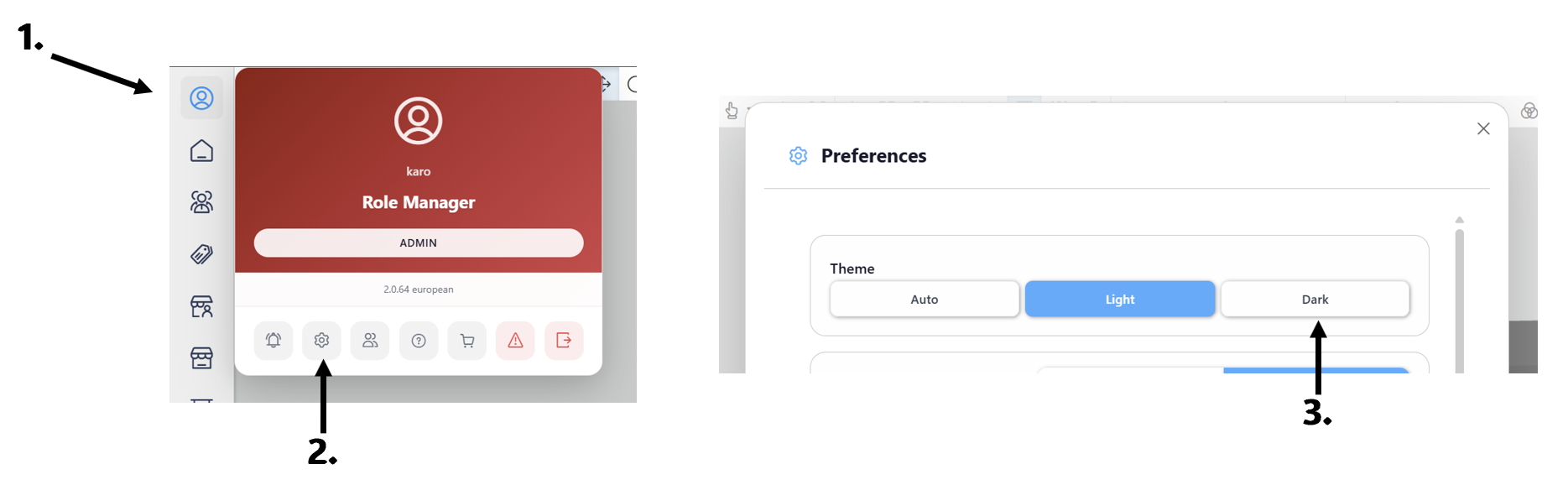
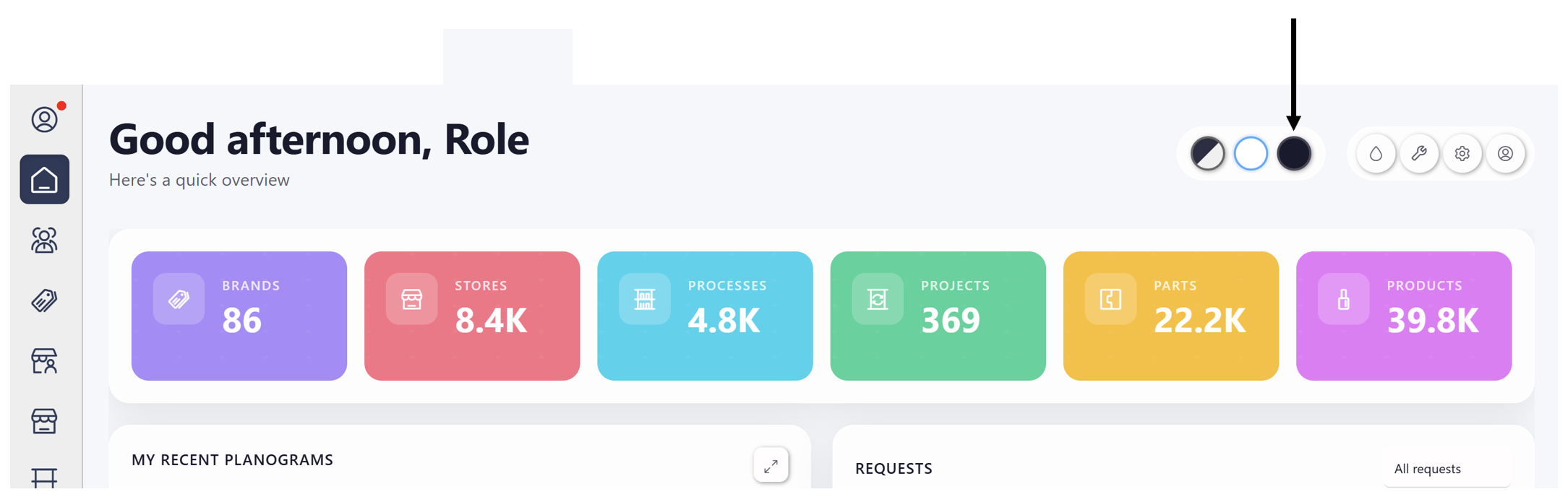
- Dashboard - buttons in the top right corner
- User Preferences - "Theme" section
¶ What Does Dark Theme Cover?
Almost everything, except parts that dark theme has not purpose (like LineView renderer)
- Dashboard
- Lists
- Forms and modals
- Tool panels and bars
- Configuration windows
- 3D Scenes
¶ Automatic Detection
The system automatically responds to system preference changes - when you change the theme in your operating system with "Auto" option, ePlano immediately adjusts its appearance.
¶ 2. ePlano Co-op - Real-time Collaboration
A system enabling multi-user collaboration on the same planogram scene in real-time.
¶ Architecture: Editor + Observers
- One editor - person actively editing the planogram
- Multiple observers - people watching changes live (view-only)
¶ How It Works?
- Editor opens the planogram and works normally
- Observers open the same planogram
- All editor's changes are immediately visible to observers:
- Element movements
- Size changes
- Adding/removing elements
- Selections (outline)
¶ Synchronized Operations
| Type | Description |
|---|---|
| SELECT | Element selection - observers see what editor selected |
| UPDATE | Property change (position, size, etc.) |
| ADD | Adding new element (cloning, drop) |
| REMOVE | Element removal |
| SAVE | Planogram save |
¶ Automatic Reconciliation
When an observer "misses" changes (e.g., was offline), the system automatically:
- Tries to intelligently synchronize differences quickly
- If differences are too large - performs full reload
¶ Benefits
- Live presentations - show client changes in real-time
- Reviews - observer sees what editor is doing
- Training - new users can observe experienced ones
¶ Co-op Notifications
The system displays notifications about collaboration session events:
| Notification | When Displayed |
|---|---|
| "You joined as editor" | User opened planogram as editor |
| "You joined as observer (view only)" | User joined in view-only mode |
| "{userName} joined as observer" | New observer joined session |
| "{userName} left the session" | Observer left session |
| "Editor has joined the session" | Editor joined (visible to observers) |
| "Editor has left the session" | Editor left (visible to observers) |
| "{count} observers in session" | Info about observer count on join |
Notifications are displayed in the status bar
¶ 3. Outline Layer - New Highlight System
Separate rendering layer (OutlineLayer) that integrates with 2D/3D view.
¶ Outline Styles
| Style | Color | Usage |
|---|---|---|
select |
Blue | Selected element |
hover |
Light blue | Element under cursor |
collision |
Orange | Flash on collision |
moving |
Asure | Element during dragging |
upcoming |
Yellow | Planned element |
exout |
Red | Element being phased out |
drawing_mode_shelf |
Blue | Shelves in drawing mode |
drawing_mode_insert |
Green | Inserts in drawing mode |
drawing_mode_product |
Purple | Products in drawing mode |
¶ Benefits
- Stability - highlights don't "get lost" when selection changes
- Multi-layered - can show multiple states simultaneously
- Performance - render only changed elements
- X-Ray mode - see every detail of the shape, even if obscured by other objects
¶ 4. Unified 2D View
One unified ePlano module handles both 3D and 2D drawing modes.
¶ How It Works?
2D and 3D views have different shading by default
- 2D view renders by default in 'plaster' mode and provides Drawing Tools
- 3D view renders with textures, as before (but better lights and quality)
¶ 5. Drawing Tools
¶ Replaces 'edit in 2D view'
If you need a quick prototype or mockup, this tool is for you!
Ability to draw simplified elements like Shelf, Insert or Product directly on the scene.
¶ Where Can You Draw?
| Surface | Shelf | Insert | Product |
|---|---|---|---|
| Backboard | ✓ | ✓ | ✗ |
| BodyBoxBack | ✓ | ✓ | ✗ |
| BodyBoxBase | ✓ | ✓ | ✗ |
| Insert | ✗ | ✗ | ✓ |
Note: Products be drawn on Insert
¶ How to Use?
- Switch to 2D view
- Open Draw Tools dropdown from top toolbar
- Choose element type: Shelf, Insert or Product
- Click and drag on appropriate surface
- Confirm or cancel
¶ Drawing Mode
After opening Drawing Tools panel automatically:
- Selection is blocked (clicking doesn't select elements)
- "Plaster" preview is on (Backboard texture visible)
- Special outlines for existing objects are displayed (via Outline Layer)
¶ Required Parts in Database
Drawing requires simplified parts (box geometry):
BackboardShelf- for shelvesBackboardInsert- for insertsProductMockup- for products
¶ 6. Quality and Performance System
¶ Quality Presets
Three rendering quality levels:
| Preset | Shadows | Shadow Resolution | Antialiasing | Pixel Ratio |
|---|---|---|---|---|
| High | 4 lights | 2048px | Yes | up to 2.0 |
| Medium | 2 lights | 1024px | Yes | up to 1.5 |
| Low | 1 light | 512px | No | 1.0 |
¶ Auto-adapt (Automatic Adaptation)
System automatically adjusts quality based on FPS:
- FPS < 20 for 10 seconds → quality decrease
- FPS > 50 for 10 seconds → quality increase
- 45 second cooldown between changes (prevents flickering)
¶ Status Bar Indicators
Status bar displays:
- Current quality preset
- Camera view mode
- Coop (how many users joined the session)
- Modifier mode (Clone/Flock)
- Planogram name and microstatistics (if there's space)
¶ How to Change Settings?
Appearance Panel → Quality Settings:
- Preset selection (High/Medium/Low)
- Enable/disable auto-adapt
¶ 7. Keyboard Navigation
¶ New Camera Controls
| Key | Action |
|---|---|
| ← ↑ → ↓ | Pan view |
+ / = |
Zoom in |
- |
Zoom out |
See Key Shortcuts for all key accelerators in the system
¶ Smooth Animation
- Navigation is smooth thanks to RAF (requestAnimationFrame) synchronization
- Constant speed independent of key repeat rate
- Pan speed: ~175 px/s
- Zoom speed: ~50% change/s
- Extra speed with shift key
¶ 8. Camera and View System
¶ View Cycling (Loop)
New feature for cycling between predefined camera views and focusing on selected object
Sequence: Front → Left → Right → Top → Free → Front...
- In 3D mode: smooth transition animation
- In 2D mode: instant switch
¶ View Indicator
Current camera view is displayed in status bar with flash animation on change.
¶ Zoom-to-Selected
When zooming in, camera automatically moves toward the selected object.
Configuration:
- Strength: 0-0.2 (0 = disabled)
- Available in user preferences
¶ Zoom Damping
Smooth zooming with inertia after releasing scroll wheel:
- Half-life: 80ms
- FPS-independent
¶ 9. Properties Panel - Quick Edit
¶ Drag-to-change (Middle Mouse Button)
In the part's Properties panel you can now quickly change numeric values, like dimension, rotation etc.:
| Action | Effect |
|---|---|
| Middle button + drag right | Increase value |
| Middle button + drag left | Decrease value |
Input by keyboard and arrow icons available as before
¶ Dimensions in Millimeters
- All element dimensions are now entered in millimeters
- Automatic minimum value validation
¶ Disabled Insert Dimension Editing
Insert dimensions are now edited via InsertGroup - direct Insert dimension editing is disabled for consistency.
¶ 10. Comments and Tasks - New Workflow
¶ Change of Approach
Quick clicking through sprites - compact workflow for reviewing many tasks.
¶ Task Sprites - Colored Pins
Tasks on scene are displayed as small colored "pins":
| Color | Status | Priority |
|---|---|---|
| Red | Check Not Checked | 5 (highest) |
| Blue | Request Not Fixed | 4 |
| Yellow | Info Needed | 3 |
| Green | Fixed/Checked | 2 |
| Gray | General | 1 |
| Black | Deleted | 0 |
¶ New Workflow - Clicking Through Tasks
- Inactive state: Small sprite (30x30px) with task count (e.g., "3")
- Color = highest priority from cluster
- Click: Sprite activation (+25% scale)
- Displays "1/3"
- Opens first task in side panel
- Next clicks: Cycles through tasks in loop
- "2/3" → "3/3" → "1/3"...
- Color changes according to current task
- Click outside: Deactivation, return to normal state
- Position memory: Each sprite remembers its position in loop
¶ Benefits of New Workflow
- Speed: Click-click-click instead of hover and wait
- Clarity: Instantly see how many tasks and which part exactly they concern
- Control: You decide when to move to next
- Separation: Text is visible in Comments panel, no double text or distraction in 3D view
¶ Pop-in Animation
Sprites disapear during Camera movement to avoid distraction. They appear with "pop-in" animation for smoother visual effect
¶ 11. Tools Panel and Appearance
¶ HDRI Toggle and Presets
- Ability to enable/disable HDRI with one button
- Dropdown with HDRI presets - choose different lighting environments
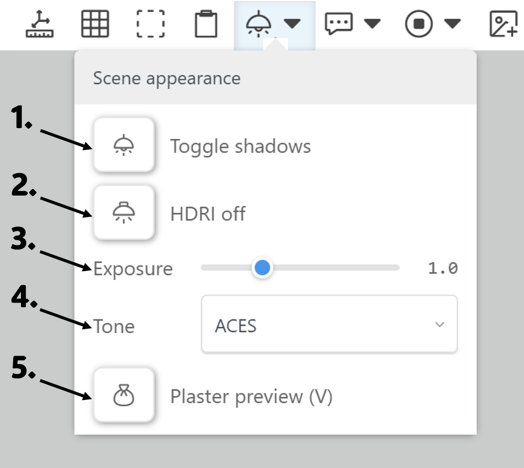
- Turns on and off shadows
- Turn on and off and choose between different High Dynamic Range Image settings
- Adjust brightness
- Choose algorithm to achieve light/dark balance
- Toggle textures on and off to make program run faster
¶ UiHandle - Unified Handle System
Before: Different handle types in separate classes, different sizes and styles.
Now: One unified Handle - readable, easy to click dot with adaptive scaling.
| Feature | Description |
|---|---|
| Constant screen size | Handle always has same size on screen regardless of camera zoom |
| Black outline | Better visible on different backgrounds |
| Per-category toggle | Visibility toggle for each part type separately |
¶ Handle Colors
| Color | Parts |
|---|---|
| Dark Blue | BodyBoxBack, BodyBoxSide, BodyBoxBase, Backboard |
| Blue | Shelf |
| Orange | Insert |
| Yellow | GraphicPanel, GraphicHolder |
| Green | Product, NoInsert |
| Light Blue | Tester |
¶ Right Mouse Button - Handle Toggle
Quick way to manage handle visibility:
| Action | Effect |
|---|---|
| 1st right click | Hide all handles |
| 2nd right click | Show handles (according to menu settings) |
Smart behavior: When you select handle visibility only for certain parts in top menu (e.g., shelves and inserts), right click will toggle visibility only for those types - not all.
¶ Benefits
- Lightning-fast management of fixture contents thanks to unified interface
- Better contrast - visible on light and dark elements
- Predictability - every handle behaves the same
¶ Dropdown menus for Visibility, Select by type and Handles
New dropdown menus from tools panel allow to mass operate on object in scene
| Option | Description | Shortcut |
|---|---|---|
| Elements visibility | Show/hide elements of given type | |
| Handles visibility | Show/hides handles of given type | |
| Show handles by type | Toggles on handles for all elements of given type |
Smart behaviour example quick setup
- Handles visibility -> 'only shelves and inserts'
- Show handles by type -> now show all handles of existing shelves
And you have super efficient view for shuffling shelves - no need to select one by one, all handles are visible. If you need to move inserts, select them to show handles. Other types won't display handles, no misclicks. The view is at the same time clean efficient for specific workflow.
¶ 12. Collisions and Visual Feedback
¶ Collision Outline
When collision is detected during element dragging:
- Element shows collision outline via Outline Layer
- Color: orange
¶ Parallel and Chunked Processing
Many processes in ePlano 2.0 have been parallelized or chunked. eg.:
| Process | Method | Description |
|---|---|---|
| Collisions | Chunked + requestIdleCallback | Collision shapes created in chunks, without blocking UI |
| Textures | BatchTextureLoader | Up to 50 textures loaded in parallel |
| Models | Parallel prefetching | Parallel model loading when opening scene |
| Cache | Parallel localForage reads | Concurrent reads from browser cache |
¶ Benefits
- Smooth FPS - no interface freezes during loading
- Faster loading - full bandwidth utilization
- Better UX - user can work while loading in background
- Faster collisions - scenes that were heavy on your hardware before - should be much more responsive
¶ Outline for States
New outline styles for different states (via Outline Layer):
collision- during collision (orange)moving- during dragging (blue)coop- during collaboration (magenta)
¶ 13. Action Confirmation
¶ Delete Confirmation
When attempting to delete an element, a confirmation panel appears:
- OK / Cancel buttons
- Animated panel at selection location
¶ 14. New Home Page (Dashboard)
¶ Modern Dashboard
Home page with responsive CSS Grid layout and configurable widgets.
¶ Header
In the top right corner:
| Element | Function |
|---|---|
| Theme Switcher | Theme toggle Auto/Light/Dark (three buttons) |
| Widgets (key icon) | Configure visible widgets |
| Preferences (gear icon) | Application settings |
| Profile (user icon) | Account information |
¶ Available Widgets (might depend of role in the system)
| Widget | Description |
|---|---|
| Cards | Quick access tiles to features |
| Project Progress | Project progress (can expand to full screen) |
| Recent Processes | Recently opened processes |
| Favourites | Favorite processes |
| Requests | List of requests and tasks |
| Checks | List of checks to perform |
| Orders | Orders |
| Material Requests | Material requests |
¶ Widget Personalization
- Click the key icon in top right corner
- Enable/disable widgets as needed
- Settings automatically save in user preferences
¶ 15. LineView - Improvements
¶ Fat Lines (Line2)
Thicker, clearer lines in rendering:
| Feature | Description |
|---|---|
| Line2 | New line implementation bypassing WebGL limitations |
| Configurable thickness | Lines can have any width (not just 1px) |
| Better readability | Clearer outlines and element edges |
¶ Better navigation
- Smooth navigation with mouse, touchpad, touch and keyboard
- Use key arrows, page up/down, +/- and shift to navigate LineView like a pro!
¶ PDF Export - Better Fonts
- Improved rendering to PDF with 'selectable text'
- Better line width scaling in PDF
¶ 16. Status Bar Alert System
¶ New Notification System (Full-bar Alert)
Alerts displayed directly in status bar - clearer and less invasive.
¶ Alert Types
| Type | Icon | Usage |
|---|---|---|
| Info | ℹ | General information (e.g., joining session) |
| Success | ✓ | Operation confirmation (e.g., save) |
| Warning | ⚠ | Warnings (e.g., editor left session) |
| Error | ✕ | Errors |
¶ 17. Toolbar Customizer
Full control over the toolbar visibility.
- Right-click on any toolbar button to open the Customizer.
- Toggle visibility of any tool group or specific button.
- Reset to Default option available.
¶ 18. Total Fullscreen Mode
¶ Immersive Experience
New "Total Fullscreen" mode that hides all UI elements for a clean presentation view.
- Toggle: Press
`(Backtick) key (usually a the top of Tab key) - Effect: Hides sidebar, toolbar, status bar, and browser UI elements.
- Perfect for: Presentations and screenshots.
Works in ePlano and LineView
¶ 19. New Undo/Redo System
¶ Robust Transaction Handling
Completely rewritten Undo/Redo engine (ChangeTracker).
- Batch Operations: Undo complex actions (like "Flock" moves) in a single step.
- Reliability: Better tracking of property changes (position, rotation, dimensions).
- History: More reliable history stack.
¶ 20. "Where is Used" Analysis
New analysis tool to find where specific product is used across all processes.
- Track usage: See list of planograms that use a specific product.
- Navigation: Jump directly to the usage location.
You'll find it on Products list -> Product card and additional operations menu (...)